Properties, Reimagined
Properties are one of the best ideas in notes apps. A few lines at the top of a note, and your notes can be sorted, filtered and laid out like a database, while staying plain text that you own.
They are also how a lot of carefully kept vaults quietly go wrong.
How notes apps got here
Properties began as front matter: a few lines between dashes at the top of a Markdown file, made popular by website generators that needed a title and a date. Notes apps took it up because it was simple, portable and free-form. There was nothing to set up. A property existed the moment you typed it.
That freedom is why it caught on, and it is where the trouble starts. Nothing holds the idea of what a property is, so nothing can tell you when one is wrong.
So you type Status one week and status the next. Priority becomes Priorty. You make a property for one note and never use it again. A template from two years ago and a plugin you tried add a few more. Each stray name splits your notes, and the searches and views built on them quietly miss the rest. You don’t get an error. You just stop trusting the results.
Values drift the same way. Nothing says a Status should be Draft, Ready or Done, so WIP turns up. Nothing says a cost shouldn’t be over budget, because there is nowhere to say it.
Two answers, and what each gives up
One answer is to give properties a strict home, where each belongs to a database or to a type of object. You get order, but your notes end up living inside the app rather than as plain files in your own folder.
The other answer is to keep the plain files and build help around them: a shared type for each name, a view that lists every property with a count, a way to rename one everywhere. That is a real help once the mess exists. But a new name is still created by typing it, and there is still nowhere to say what a property’s values should be. Changing a value across hundreds of notes can still come down to scripts and find-and-replace.
We wanted order without giving up plain files. That meant rethinking what a property is, and five ideas came out of it.
A property is defined once, and your notes stay plain
In FoldNotes a property has a definition, kept with your collection: its name, its type, its options and its rules. A note still holds nothing more than a line of text, such as Status: Draft.
You add a property to a note by picking it from a list, on the Mac, iPhone and iPad, so there is nothing to mistype. New ones are made in one place, the Property Manager on the Mac. As you name one, FoldNotes checks it against the ones you have:
- Status and status, or Due date and due-date, are one name. FoldNotes won’t make the second.
- Priorty when you have Priority, or Tags when you have Tag, gets a warning. FoldNotes names the one that exists, and you have to choose Create Anyway, in case you really mean it.
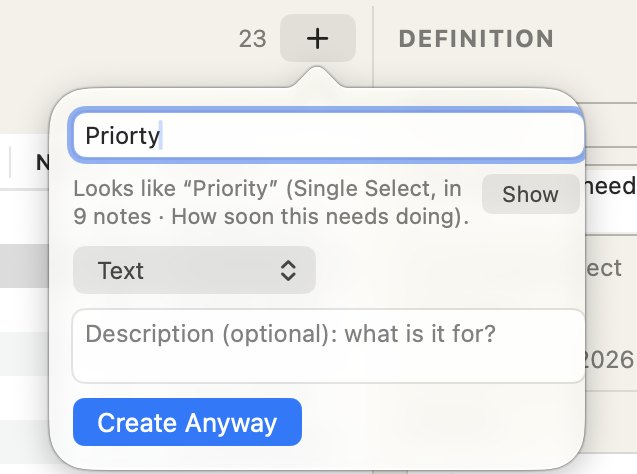
Spelling can’t catch two different words that mean the same, like Status and Stage. So each property can say what it is for, and that shows when you add it to a note.
Rules that watch, and never block
You can’t enforce a rule on a plain text file, and we didn’t want to try. So a property’s rules advise. A property can be required, have a minimum or a maximum, or a longest length.
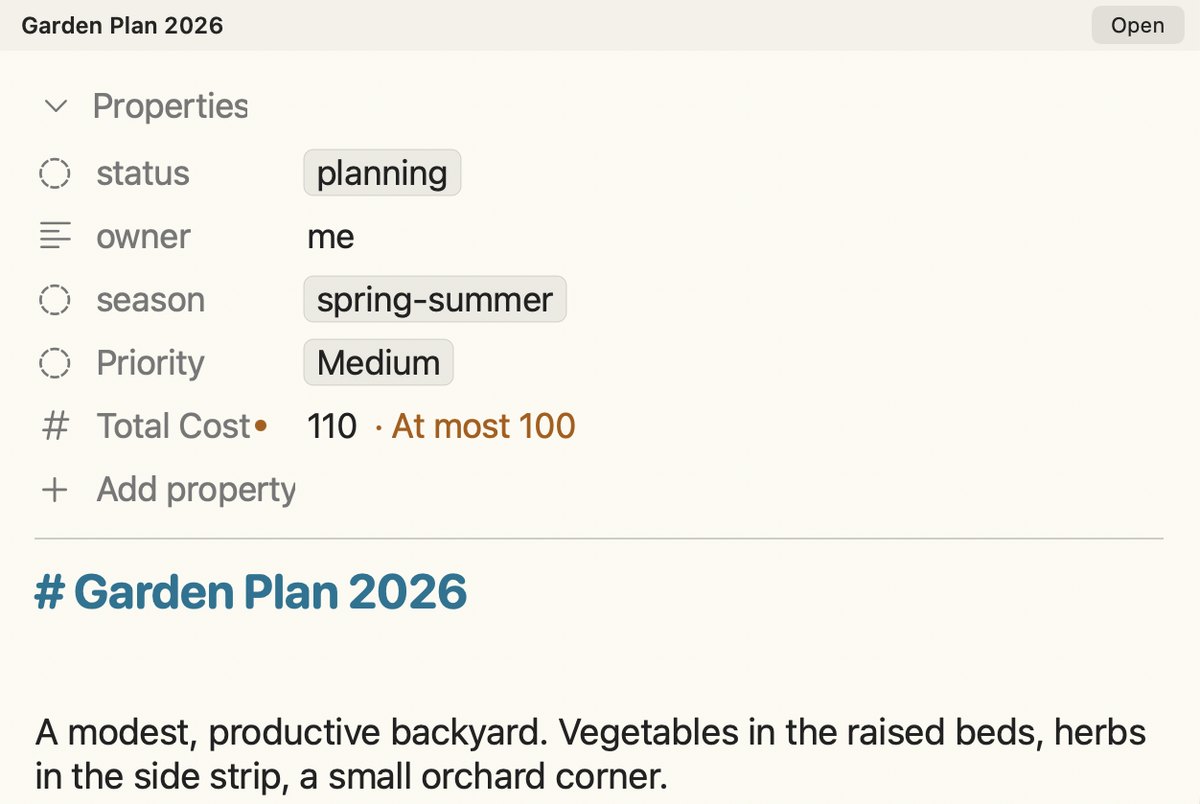
Break a rule and you see it: an orange dot after the property’s name, and the reason beside the value, such as At most 100. Your note is still saved, with your value in it. FoldNotes never changes a value on its own.
Notes change in other places, and that’s fine
Plain files are only worth having if you can open them in something else. You might edit a note in another app, or have a script write to it, and neither knows your rules. FoldNotes keeps what they wrote, then shows you where it doesn’t fit.
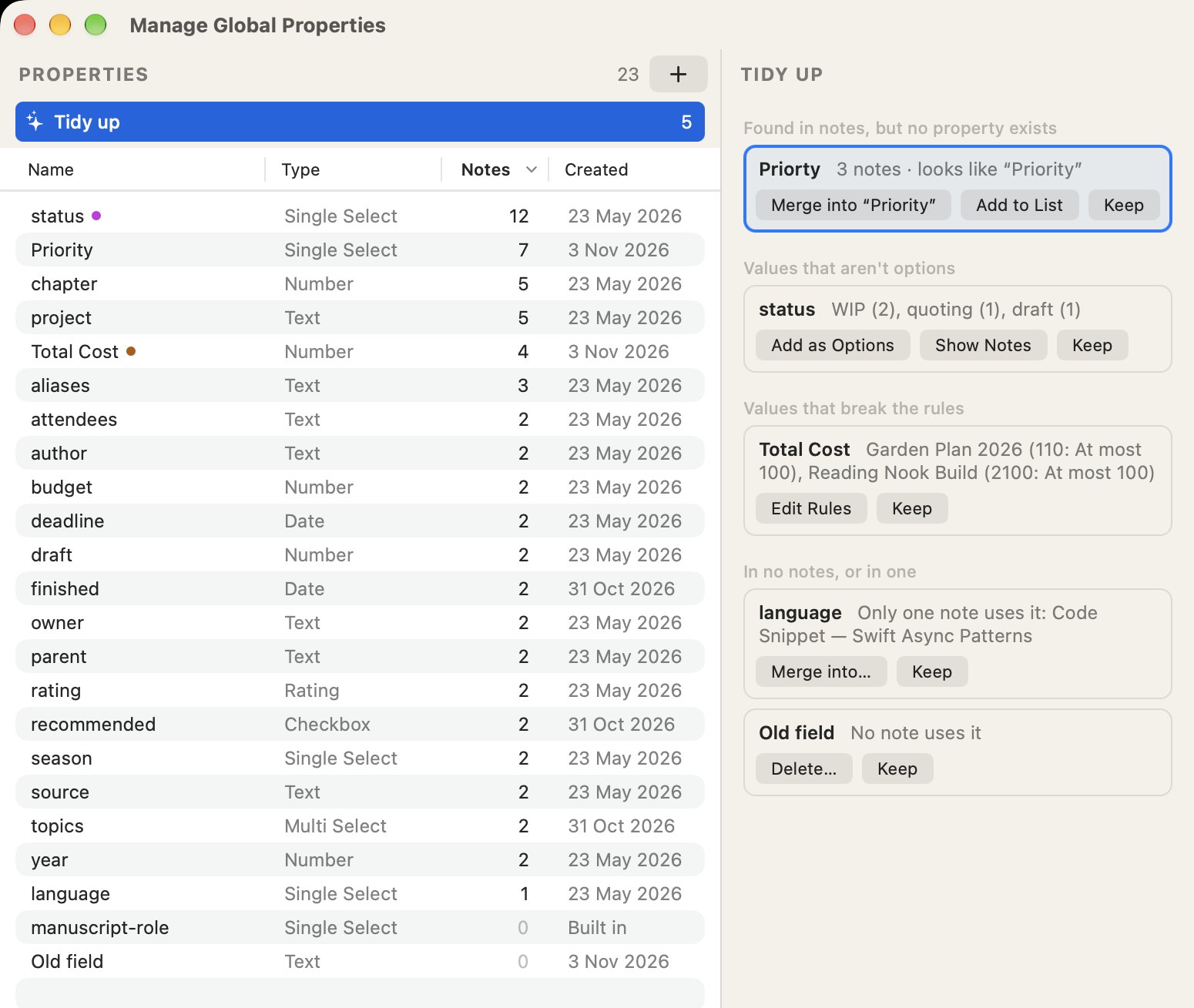
Click Tidy up and it is all in one list:
- names your notes use with no property behind them, and the property each looks like: Priorty, for Priority;
- values that aren’t one of a property’s options, such as WIP in a Status that offers Draft, Ready and Done;
- values that break your rules, such as a cost over its limit;
- properties no note uses, or only one does.
Each comes with its fix: merge it, add it, fix it in place, or keep it as it is.
Rules can change when your work does
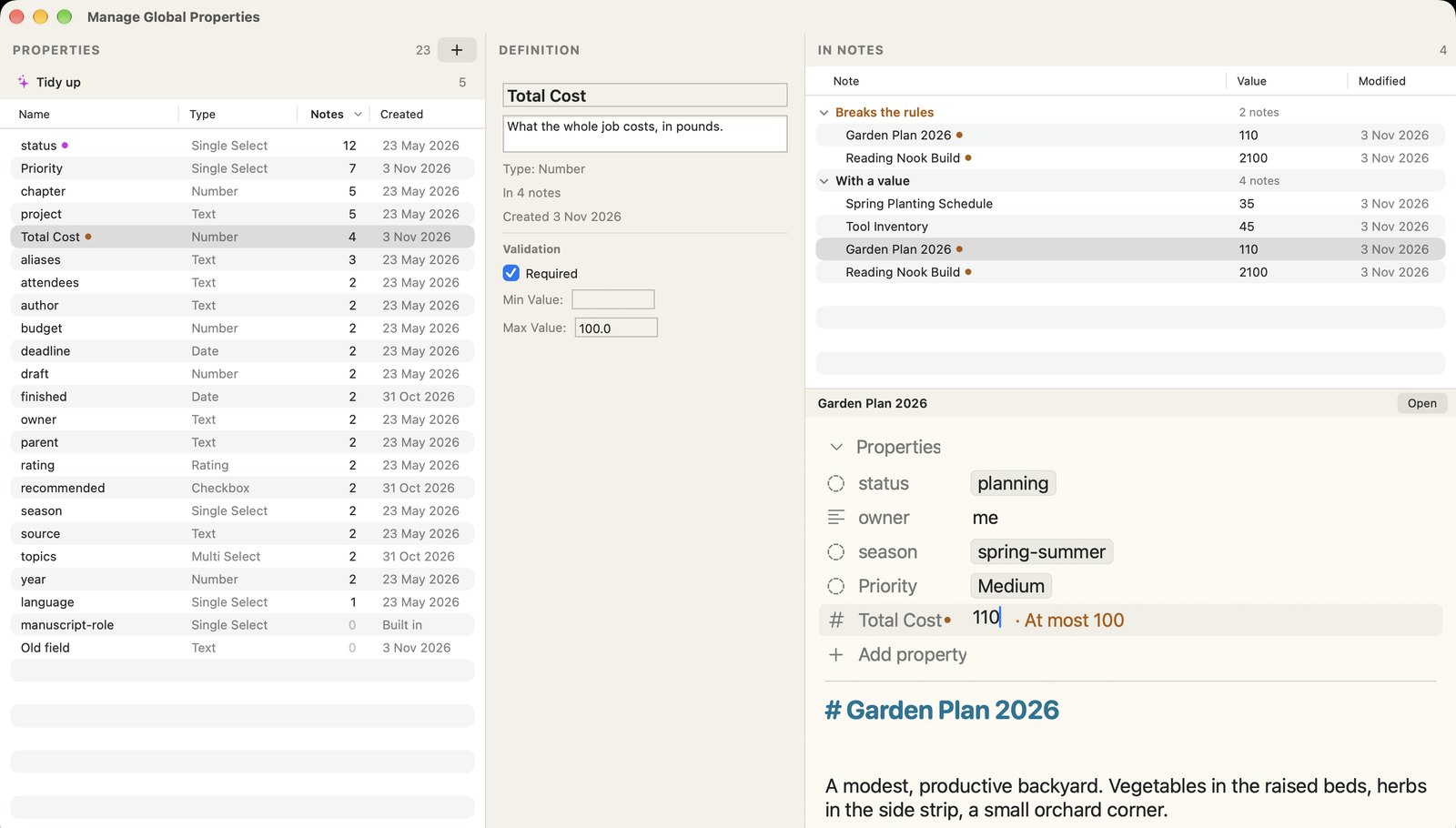
Say Total Cost has a maximum of 100, and the budget goes up to 150. Change the maximum and every note is judged again at once: the job at 110 stops being flagged, and the one at 2,100 still is. Cut the budget to 40 instead, and the job at 45 is flagged too.
The notes haven’t changed. What counts as out of bounds has, and what happens next is up to you.
Reach in and fix it, from one place
Pick a property in the Property Manager and you see every note that has it and its value, with the ones that break its rules first. A preview of the note sits underneath, and it is the real note: change a value there and the note changes, without leaving the window.
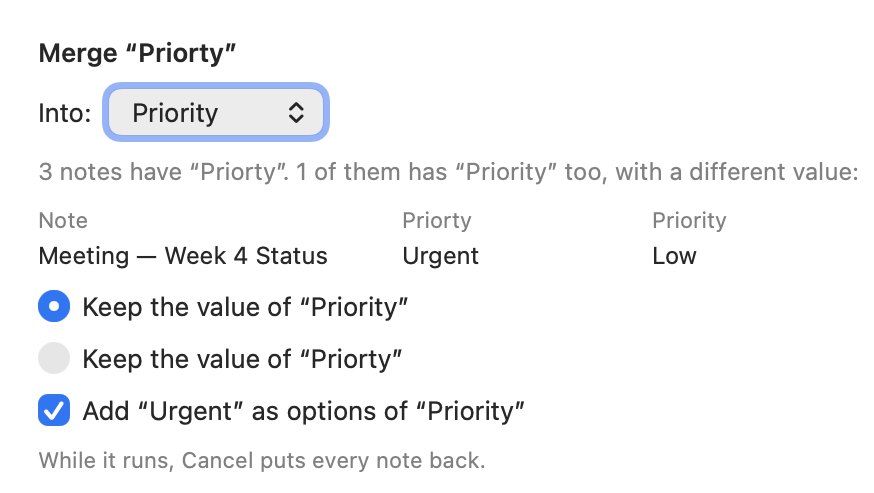
When two properties should be one, Merge folds one into the other across every note. Where a note has both, you choose which value it keeps, and nothing empty ever wins. A rename or a merge reaches your Database Views, your formulas and your Bike outlines in the same step, FoldNotes tells you which first, and Cancel puts everything back while it runs.
Coming from Obsidian?
You can try all of this without touching your vault. FoldNotes copies in your notes, links, tags and attachments, and your vault stays as it is. One thing it doesn’t bring across is your properties. You would start clean in FoldNotes, defining the ones you want, and your old values stay behind in your vault.
Still plain Markdown
Every note is still a plain Markdown file in your own folder, with its properties as lines of text at the top. Tidying them rewrites those lines and nothing else.
FoldNotes isn’t for everyone: it is Mac, iPhone and iPad only, and it has no plugins. Our comparison page sets out the differences, including where other apps may be the better choice.
Tell us what we’ve missed
You have probably lived with this problem for longer than we have. If you have an idea, or a property problem this doesn’t solve, write to [email protected].
How it all works, step by step: the Property Manager in the docs.
Download FoldNotes for Mac and try every feature free for 7 days.