Task Management in FoldNotes
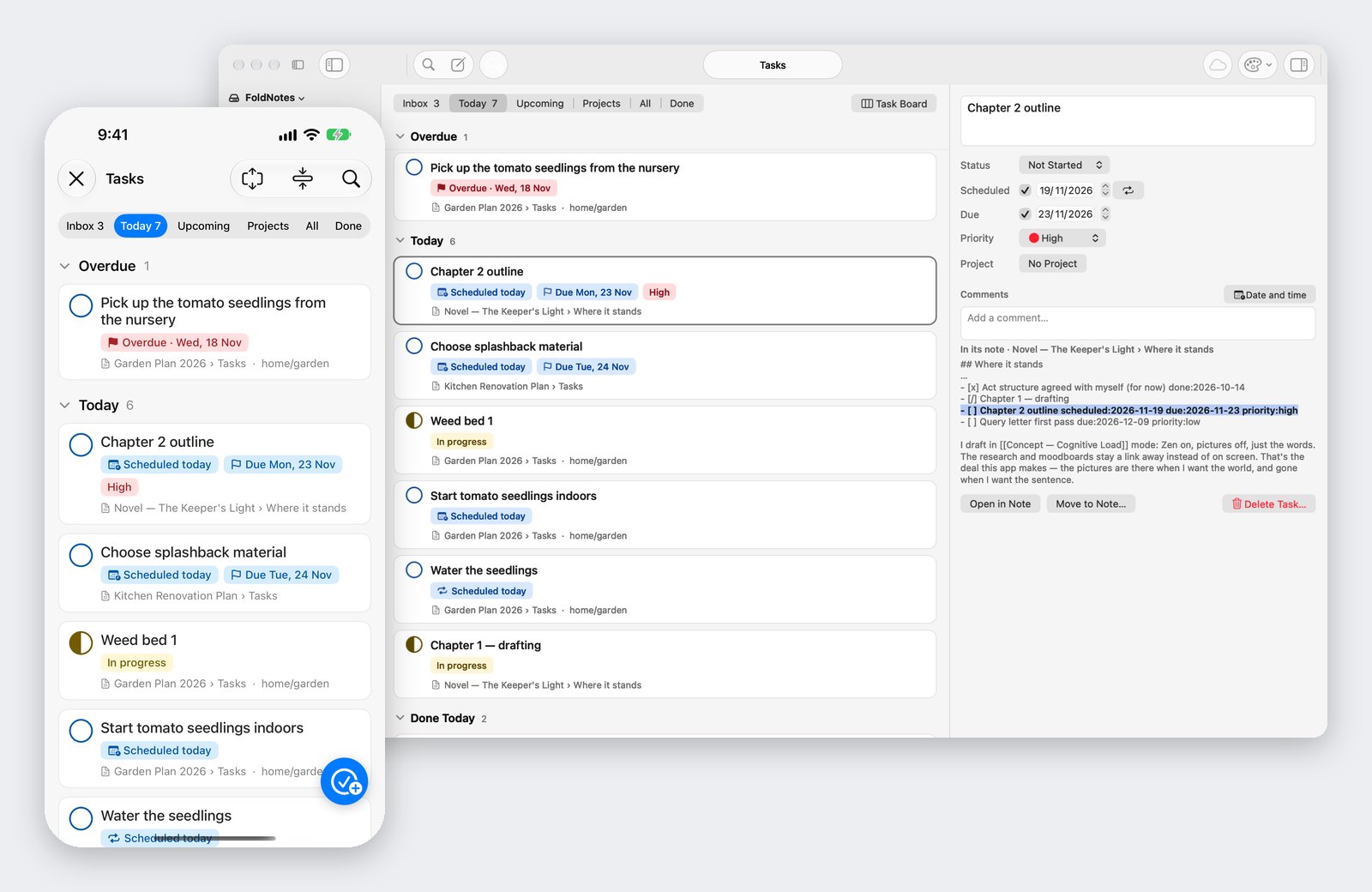
Tasks where you wrote them. In FoldNotes a task is a line in a note, right beside the thinking that made it: under the chapter it’s about, in the garden plan, in this morning’s meeting notes. The Tasks view gathers those lines from every note into one place, so you can plan your day without taking a single task out of its note.
How FoldNotes thinks about tasks
- A task belongs beside the thinking that made it. You decide to rework chapter two while you’re reading chapter two, so that’s where the task goes: under its heading, in its note. Not in a separate app that knows nothing about the chapter.
- A task is one line of plain Markdown, and it’s yours. It sits in a plain text file in your own iCloud Drive. Any text editor can read it, today and long after.
- The Tasks view gathers; it never moves. It’s a window onto the lines in your notes. Tick a task there, or change its date, and the change goes straight back to its line.
- Plan the day, not just the deadline. A due date says when it has to be done. A scheduled date says when you’ll do it. Red means late, and nothing else.
- Capture now, sort later. Jot a task in today’s daily note and it waits in the Inbox until you give it a date or a project.
- The same rules on every device. A task sits in the same tab on your Mac, iPhone, iPad and iPhone Duo. Only the way you work with it changes.
A task is a line
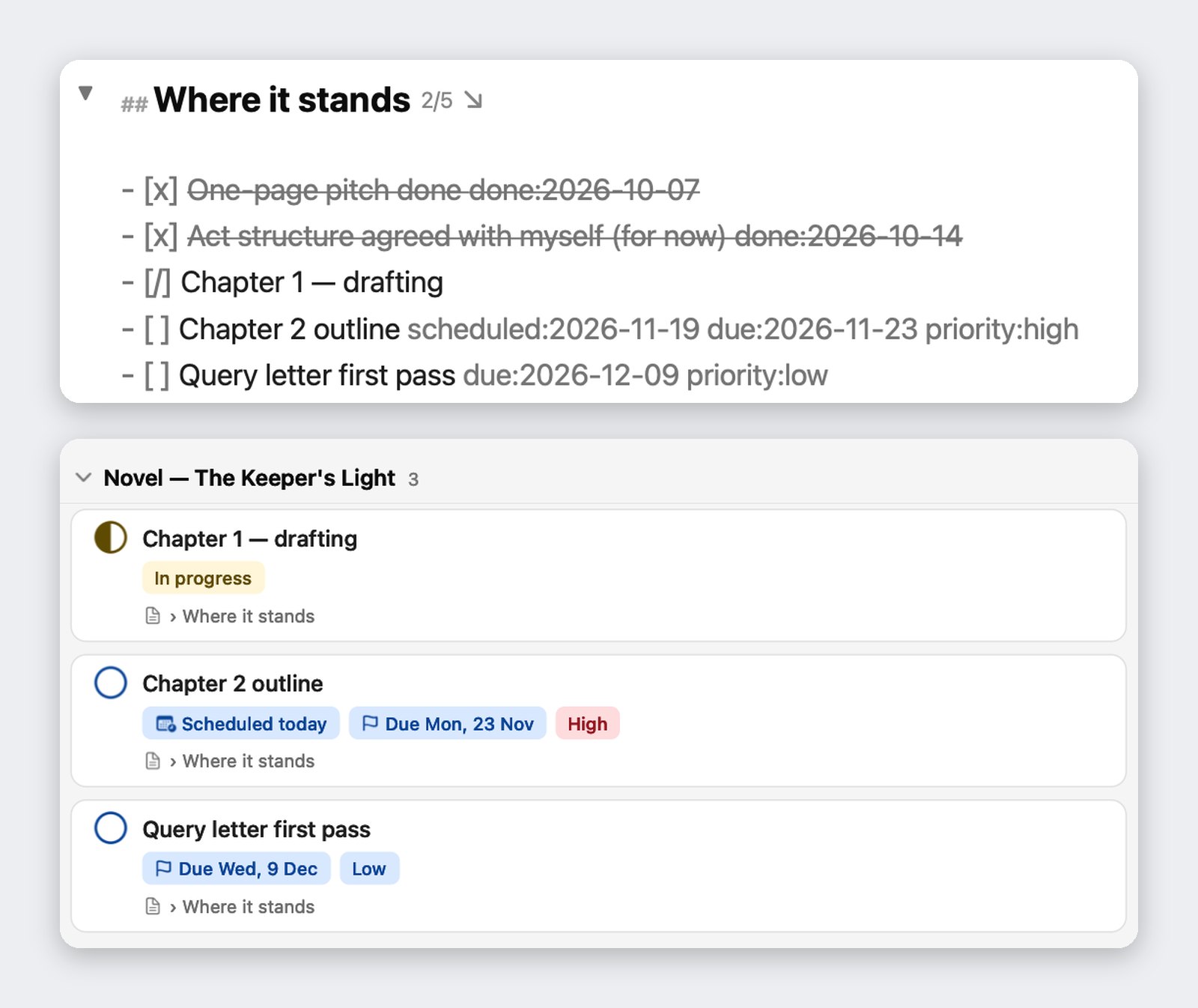
Start a line with - [ ] and it’s a task. The box says where it’s up to: [ ] not started, [/] in progress, [x] done, [-] cancelled. A few plain words after it carry the rest. These are the lines behind the task pane above:
- [x] Act structure agreed with myself (for now) done:2026-10-14
- [/] Chapter 1 — drafting
- [ ] Chapter 2 outline scheduled:2026-11-19 due:2026-11-23 priority:high
- [ ] Query letter first pass due:2026-12-09 priority:low
You never have to type those words yourself. Choose a date or a priority in the Tasks view, the task pane or a task’s menu, and FoldNotes writes it into the line. Lines that start with > under a task are its comments, and they stay with it. Give a task a project and it joins every other task in that project, whichever note it’s in.
Scheduled dates: new, and much requested
A task can now have two dates. Due is its deadline. Scheduled is the day you mean to work on it. A report due on Friday can sit on Wednesday’s list, and Today shows the work you planned for today as well as what’s due.
- Red only when it’s truly late. A task turns red once its due date has passed, at 5 PM on the day it’s due. A scheduled day that slips by never turns red: the task stays on Today until you do it, or schedule it again.
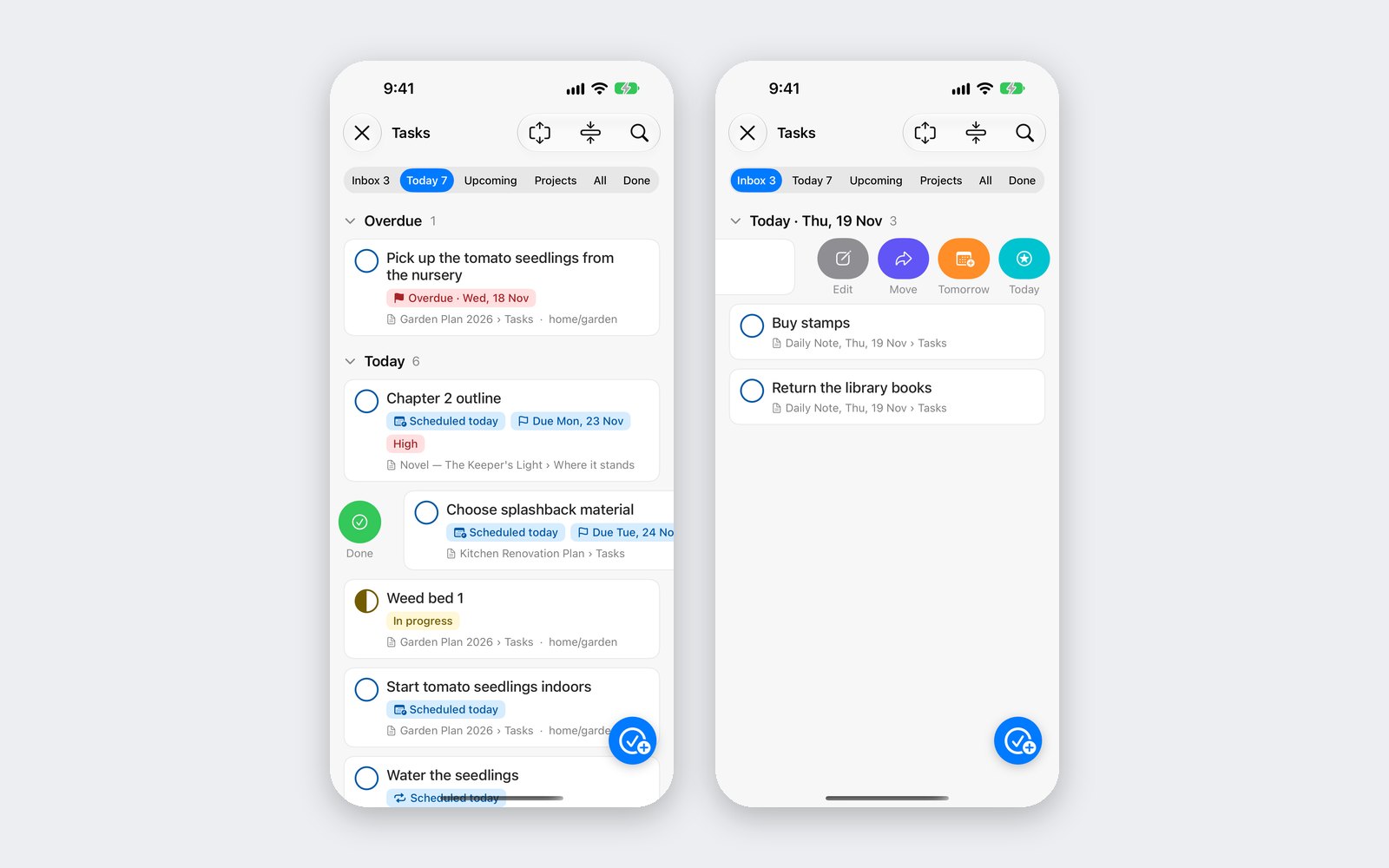
- Set it in a moment. Right-click a task on the Mac, or touch and hold it on iPhone and iPad, and choose Schedule: Today, Tomorrow or Next Week. On iPhone and iPad, swipe left for Today or Tomorrow. Choose any day in the task pane or the task sheet, or drag a card to a day in the Week view on the Mac.
- The two dates keep each other honest. A scheduled date can’t fall after the due date. Try it, and FoldNotes tells you why and leaves the task as it was.
Your day, in six tabs
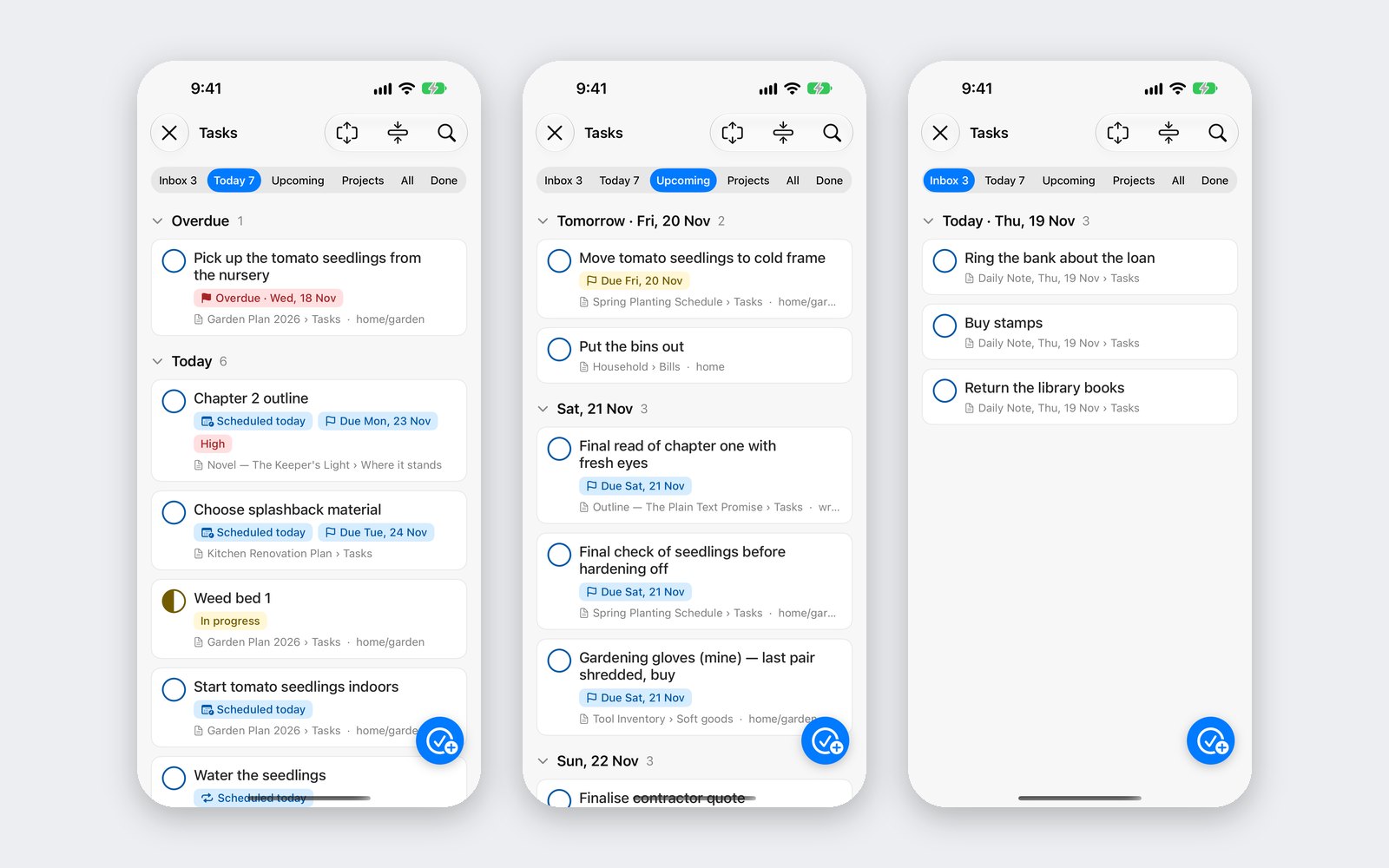
The Tasks view sorts every task into six tabs:
- Inbox: what you jotted down in a daily note and haven’t given a date or a project yet.
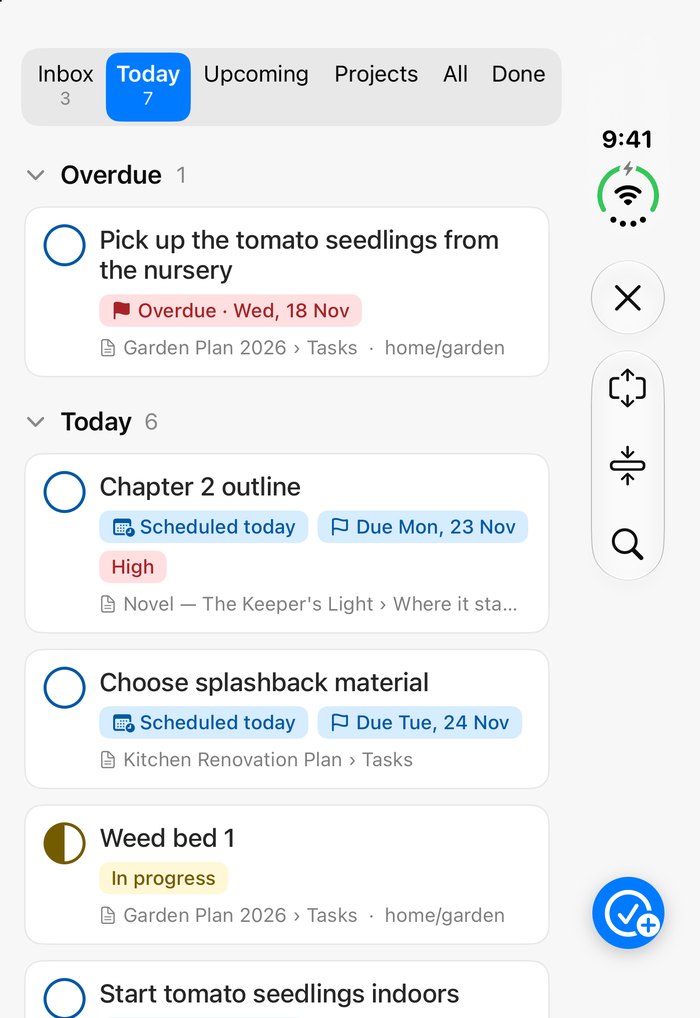
- Today: what’s overdue, what’s due today, what you scheduled for today, and what you’ve started. Then what you’ve finished today, dimmed.
- Upcoming: the next seven days one by one, then a week at a time.
- Projects: every task with a project, under its project.
- All: every open task, under the note it lives in.
- Done: what you’ve finished, by the day you finished it.
Tap a task’s circle to move it on: in progress, done, cancelled. It waits three seconds, with a ring counting down, so you can tap again before it moves. On iPhone and iPad, swipe right for Done. The colours mean one thing everywhere: red to act now, yellow soon or under way, blue not yet, green done.
Tasks that come round again
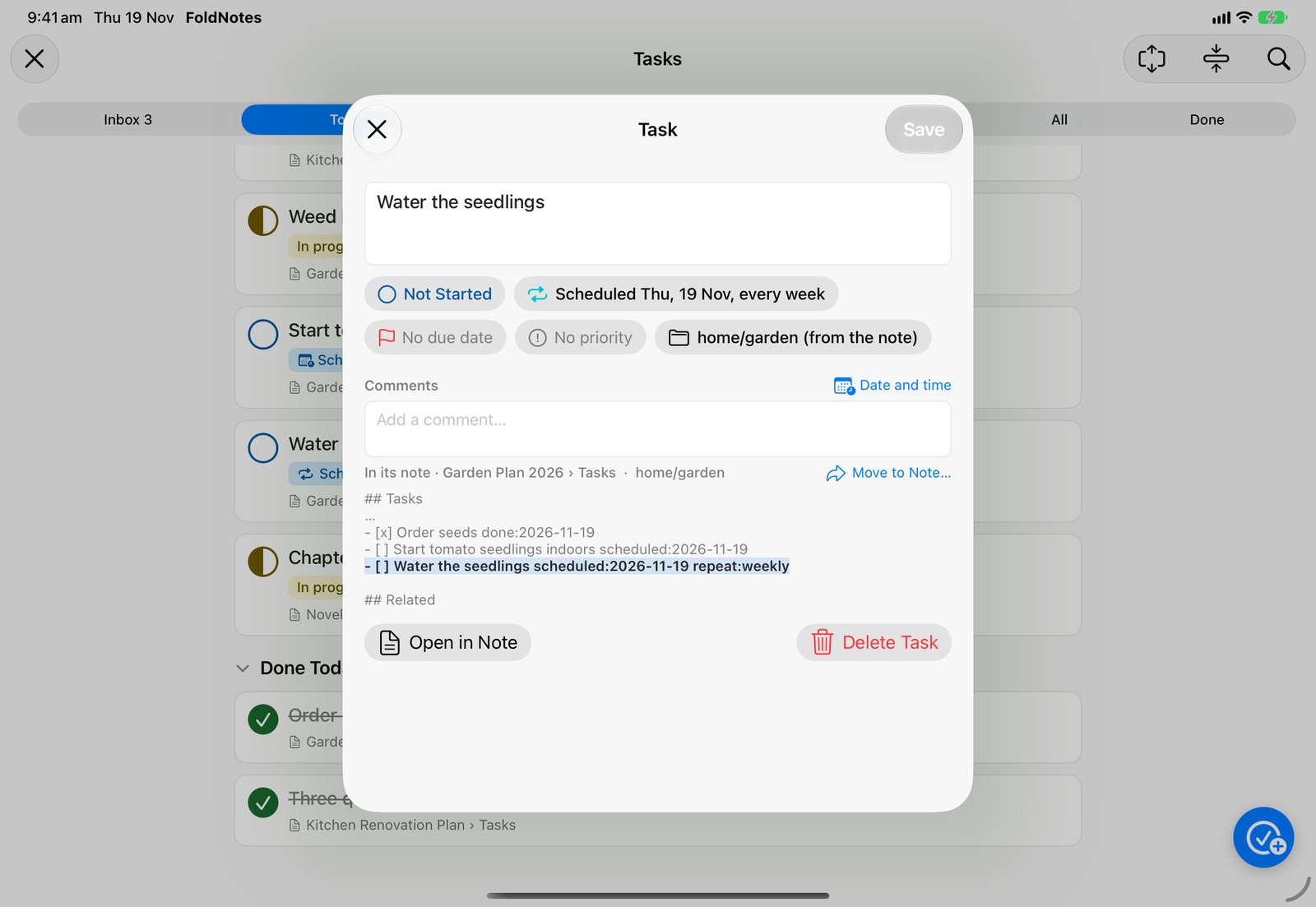
Paying the rent, watering the seedlings, the monthly report. Give a task a repeat: every day, every weekday, every week, every month on the 10th or on the 2nd Thursday, every year, or a rule of your own, such as every 2 weeks or the last Friday of the month.
Tick it done and FoldNotes adds the next one on the line below, with its dates moved on. The one you ticked stays in the note as the record of that time, and for a few seconds its card tells you when the next one is: Done · next one Mon 23 Nov.
The Week view macOS
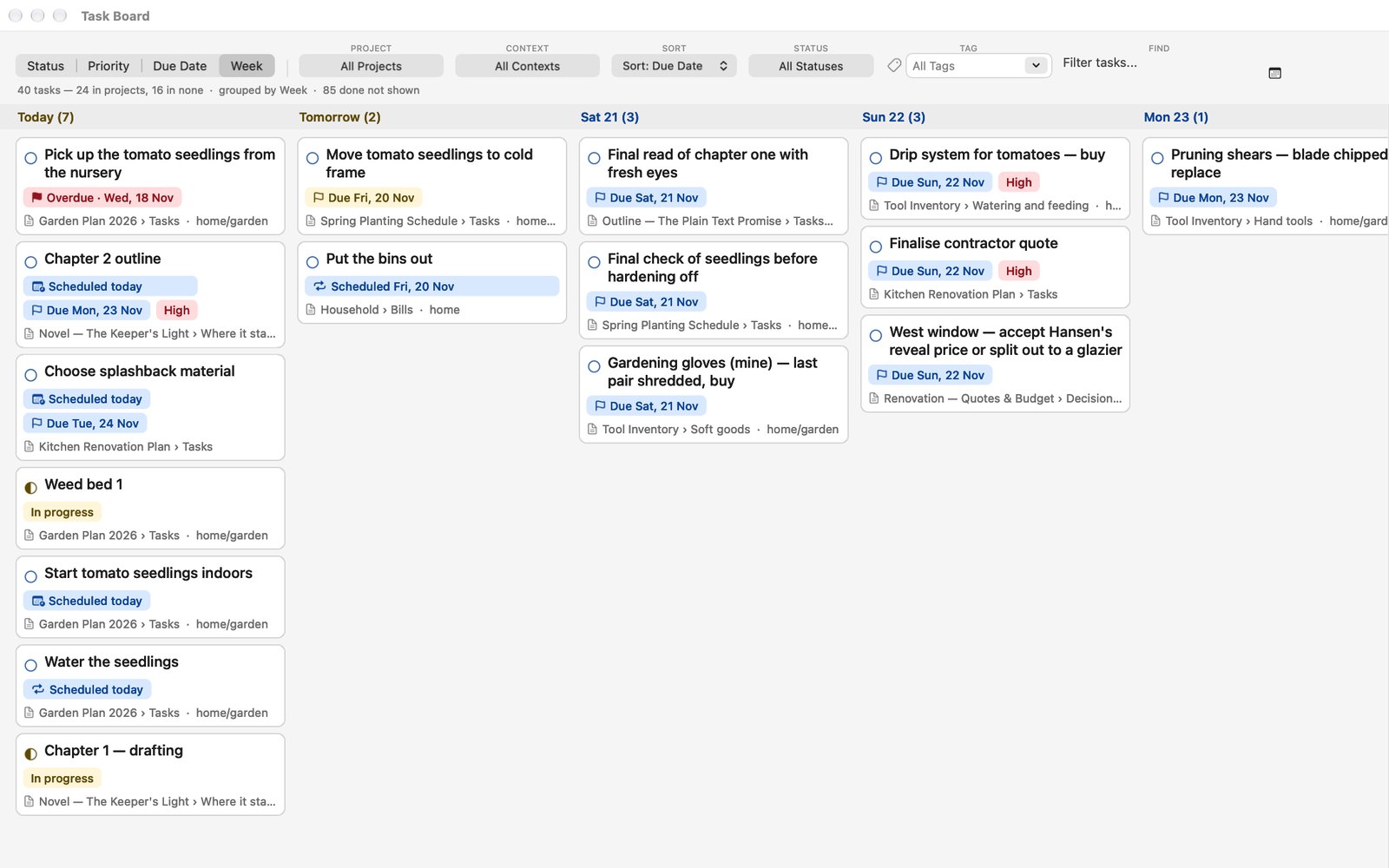
On the Mac, the Task Board opens the same tasks in a window of their own, to keep beside your notes on a big screen. Its Week view gives today and each day after it a column. Drag a card to the day you’ll do it, and its scheduled date changes in its note. The board can also group your tasks by status, priority or due date, with a calendar beside them.
Capture it anywhere
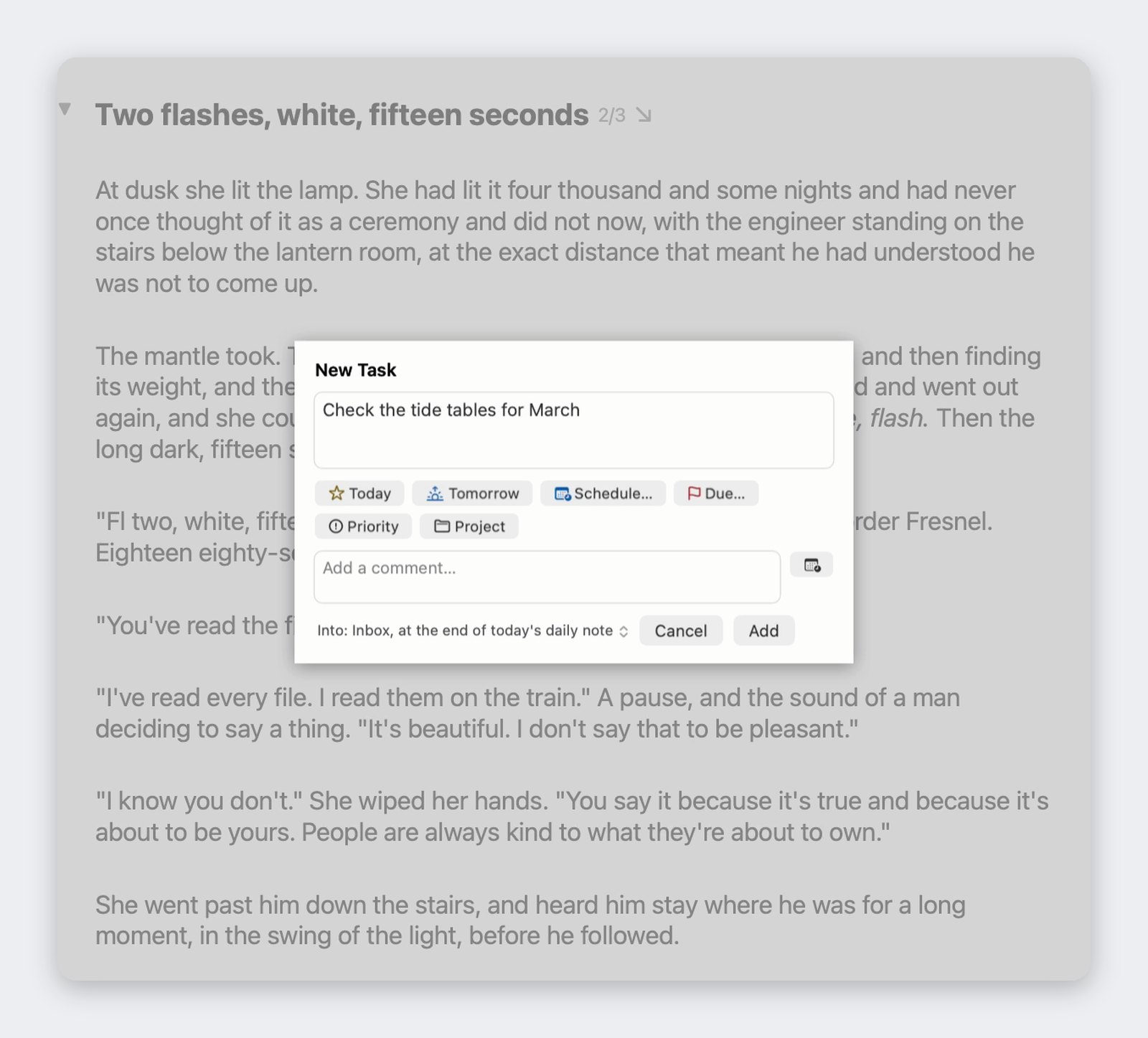
- New Task, wherever you are. On the Mac, click New Task in the toolbar or press Control-Command-N, even in the middle of a sentence in the editor. On iPhone and iPad, tap the round New Task button. From Today, a new task starts scheduled for today. From anywhere else it goes to your Inbox, in today’s daily note, or into the note you choose.
- Your daily note. Write a task in today’s daily note and it’s in the Inbox, ready to sort when you have a minute.
- Siri and Shortcuts. Ask Siri to add a task in FoldNotes, or build it into a shortcut. With no note named, it goes to today’s daily note. Siri can also tell you what’s due today and what’s overdue.
- Move to Note. When a task you jotted down belongs somewhere else, move it to that note, with its comments and anything indented under it. Right-click it on the Mac; on iPhone and iPad, touch and hold it, or swipe it left. Undo puts it back.
Tasks fold, like everything else
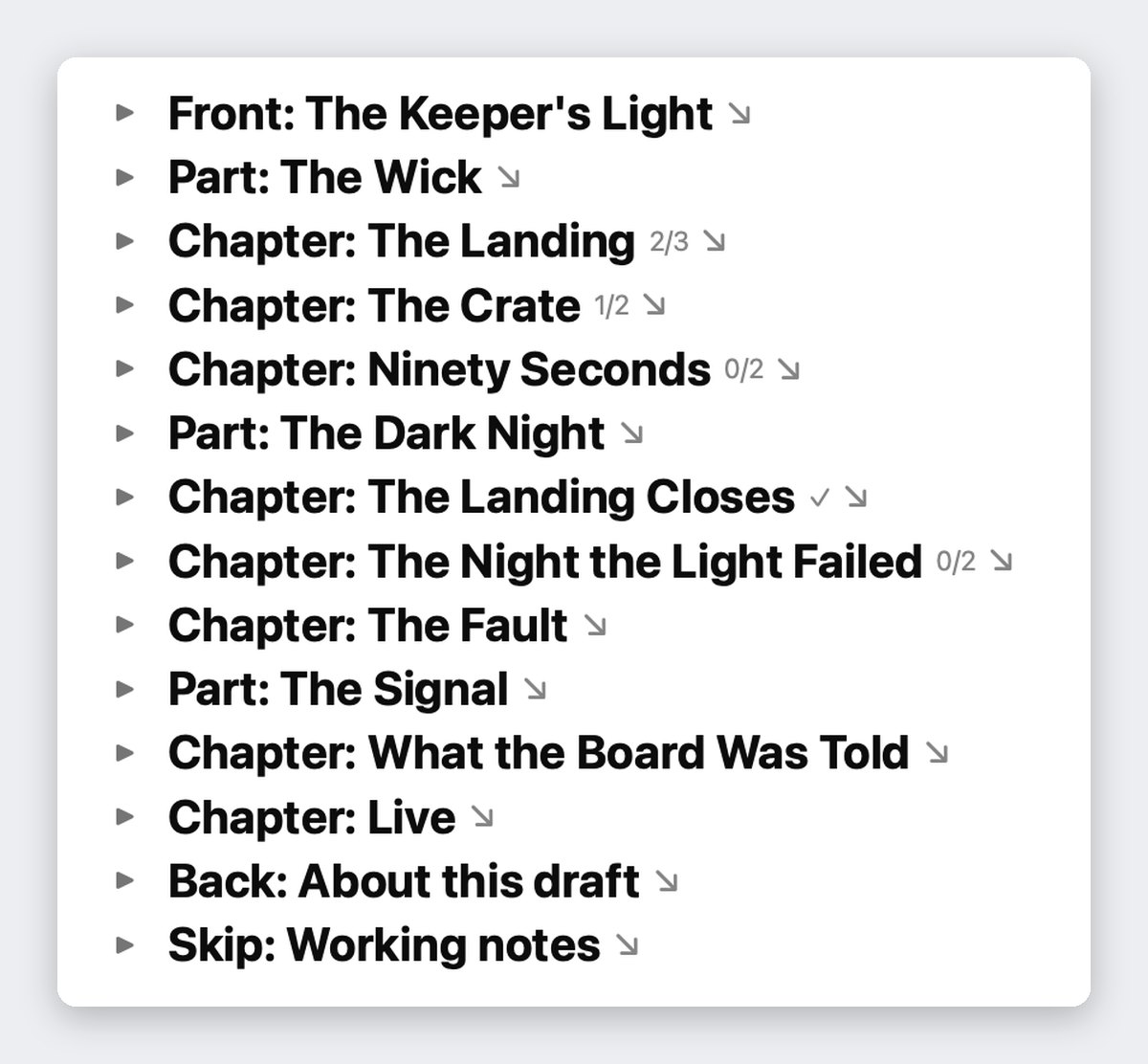
Folding is what FoldNotes is built around, and your tasks fold with the rest of your writing. A heading that holds tasks shows a count beside it, such as 12/15, or ✓ when everything under it is done, so even a folded chapter tells you what’s left inside it. Notes you indent under a task fold away beneath it. Hoist the section you’re working on, and you see only its words and its tasks.
Reminders, when you want them
Give a task a due date and FoldNotes can remind you on the day, at 9 AM, 2 PM or 5 PM, or at 9 AM the day before. Mark it done from the reminder itself, or snooze it for an hour or until tomorrow morning. Reminders are off until you turn them on, in Settings > Notifications.
On every device
Your Mac, iPhone, iPad and iPhone Duo sort tasks by the same rules, and iCloud keeps them in step: schedule a task on the Mac and it’s on your iPhone’s Today. What changes is the way you work with them.
- Mac: the task pane beside the list, several tasks changed at once, and the Task Board.
- iPhone and iPad: a task opens in a sheet. Swipe right for Done, or left for Today, Tomorrow, Move and Edit.
- iPhone Duo: closed, the front screen holds the whole Tasks view beside the side bar. Open, it works like an iPad.
From the command line and AI macOS
fn, FoldNotes’ command line tool, lists, adds, completes, moves and changes tasks from Terminal:fn tasks list,fn tasks add,fn tasks moveand more. Use it in scripts, shortcuts and anything else that runs a command.- The FoldNotes MCP server lets an AI assistant you set up read your tasks, and add, complete or move them. It runs on your Mac. When a cloud assistant reads a note, that note’s text goes to the assistant’s provider as part of your conversation; with a model on your own Mac, it stays there. See FoldNotes and AI.
Where it stops
Better to know now than to find out later:
- Personal, not shared. Your tasks are yours. There’s no assigning a task to someone else, and no shared task lists.
- Days, not times. A task has a scheduled day and a due day, not a time of day. It turns red after 5 PM on its due date, and reminders come at the hour you choose in Settings.
- Some things are Mac only: the Task Board and its Week view, changing several tasks at once,
fnand the MCP server. - Other apps see the line, not the plan. Open a note in any text editor and the tasks are there as you wrote them; type an x in a box and that task is done. But
scheduled:andrepeat:are FoldNotes’ own words. Another app won’t put a task on its scheduled day, or bring a repeating task round again.
Learn more
The help pages go into every detail: The Tasks View, Tasks, Repeating Tasks, Task Colours, the Task Board and Task Notifications. The FAQ answers the common questions.
Start planning

FoldNotes for iPhone and iPad is free. FoldNotes for Mac is free for 7 days, then a Yearly or a Lifetime licence. There’s no FoldNotes account to create: iCloud, which you already have, keeps your notes and tasks in step on every device.